How to create local web server on Windows Server

A passionate DevOps & High Performance Computing enthusiast from India
Here we will understand how to create a local server on Windows Server and host a locally created static webpage.
We just need a machine installed with any Windows Server OS.
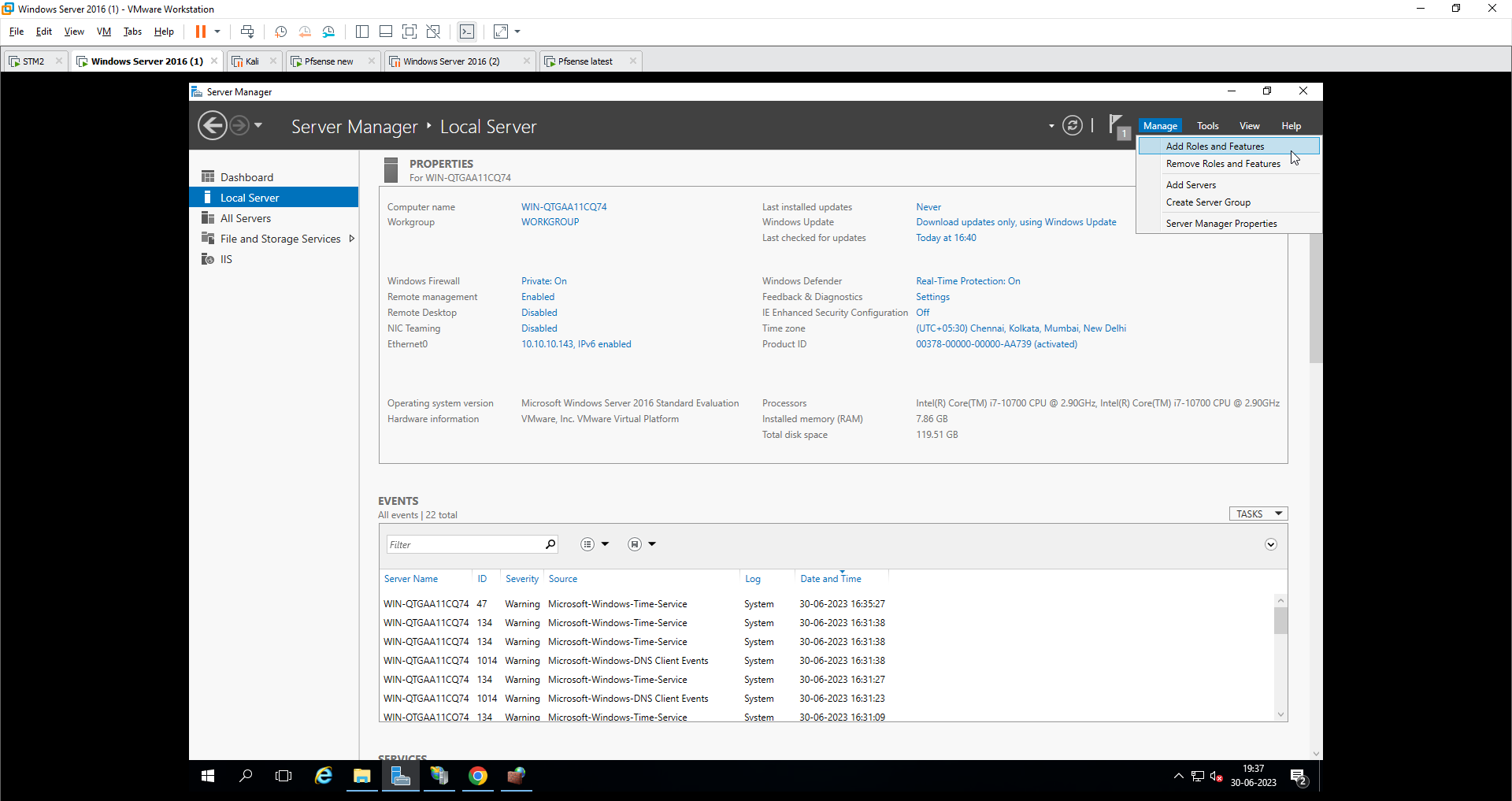
Open server manager to create a server:
Step 1
Local Server
Add roles and features
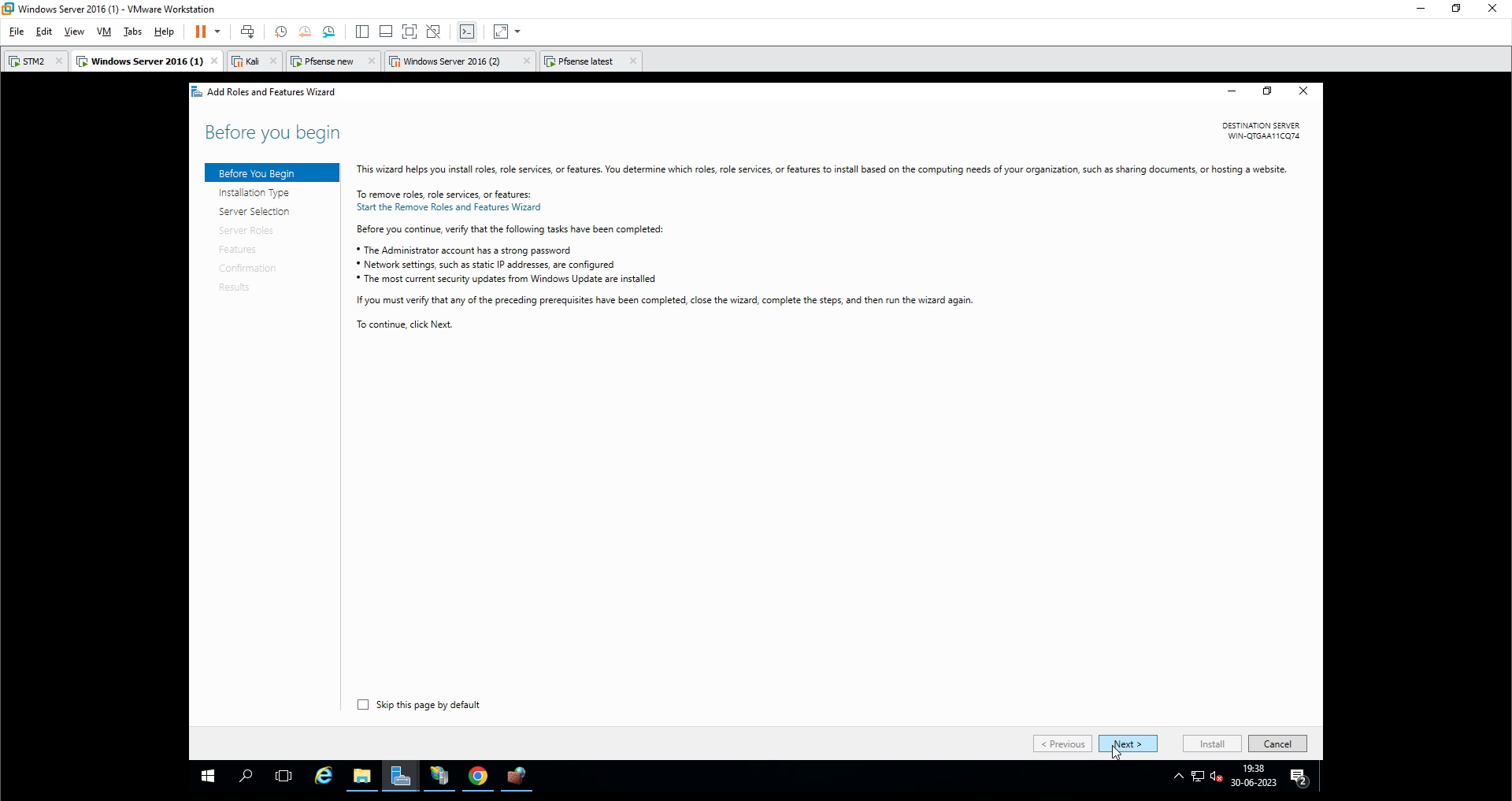
Step 2
- Next
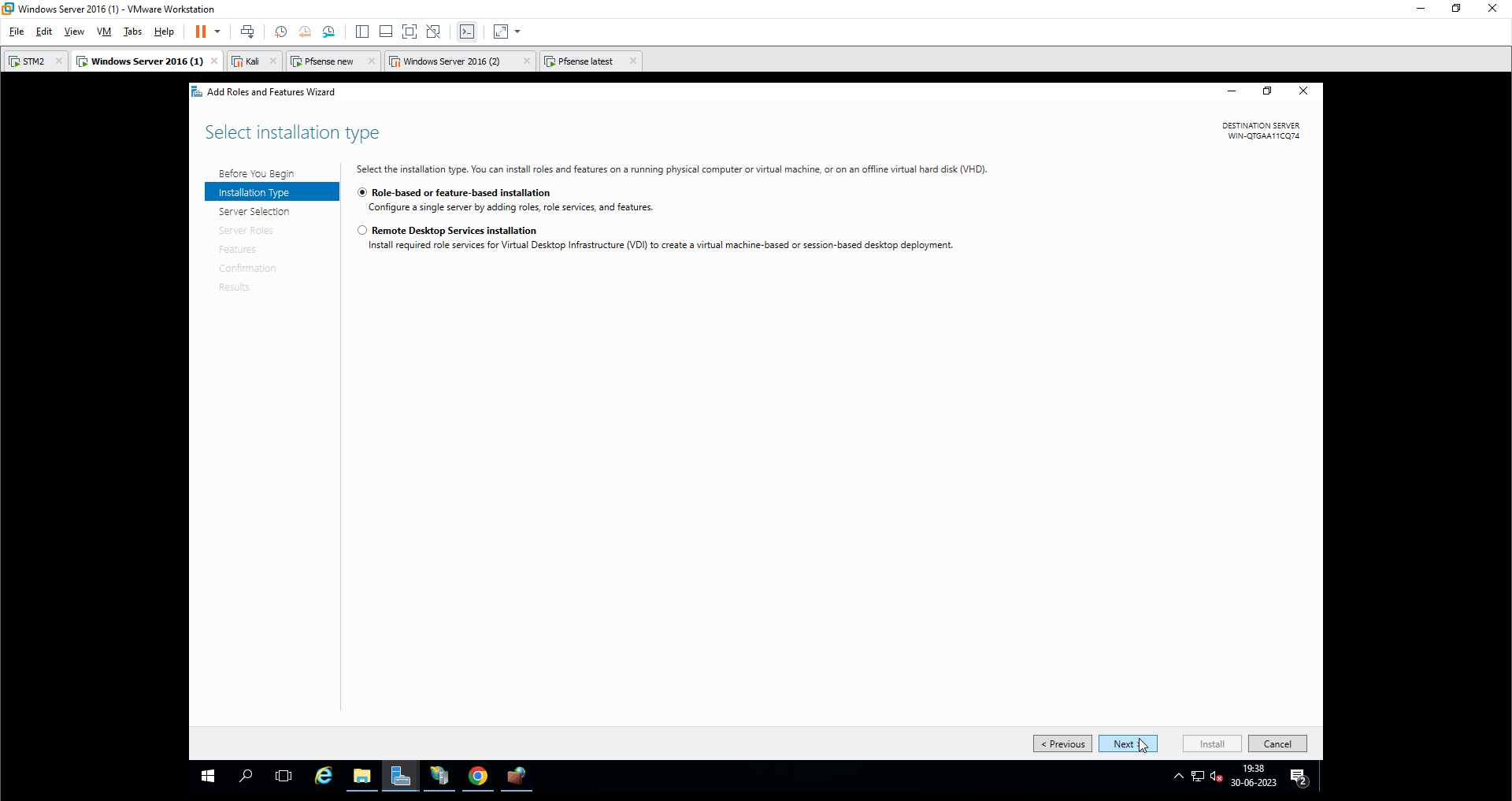
Step 3
Role-based or feature-based installation
Next
Step 4
Select from server pool
Next
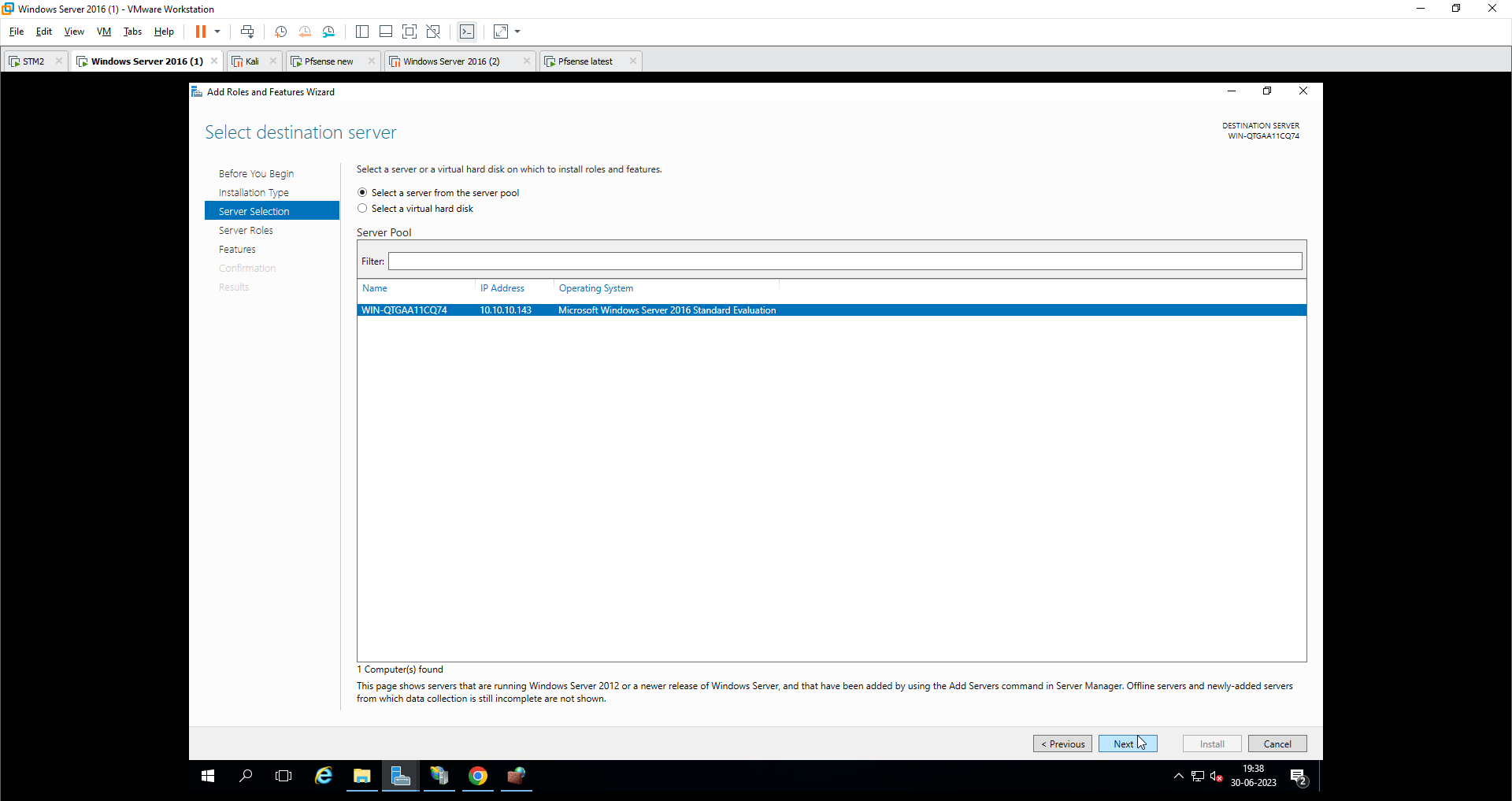
Step 5
Select Web Server IIS from list
Next
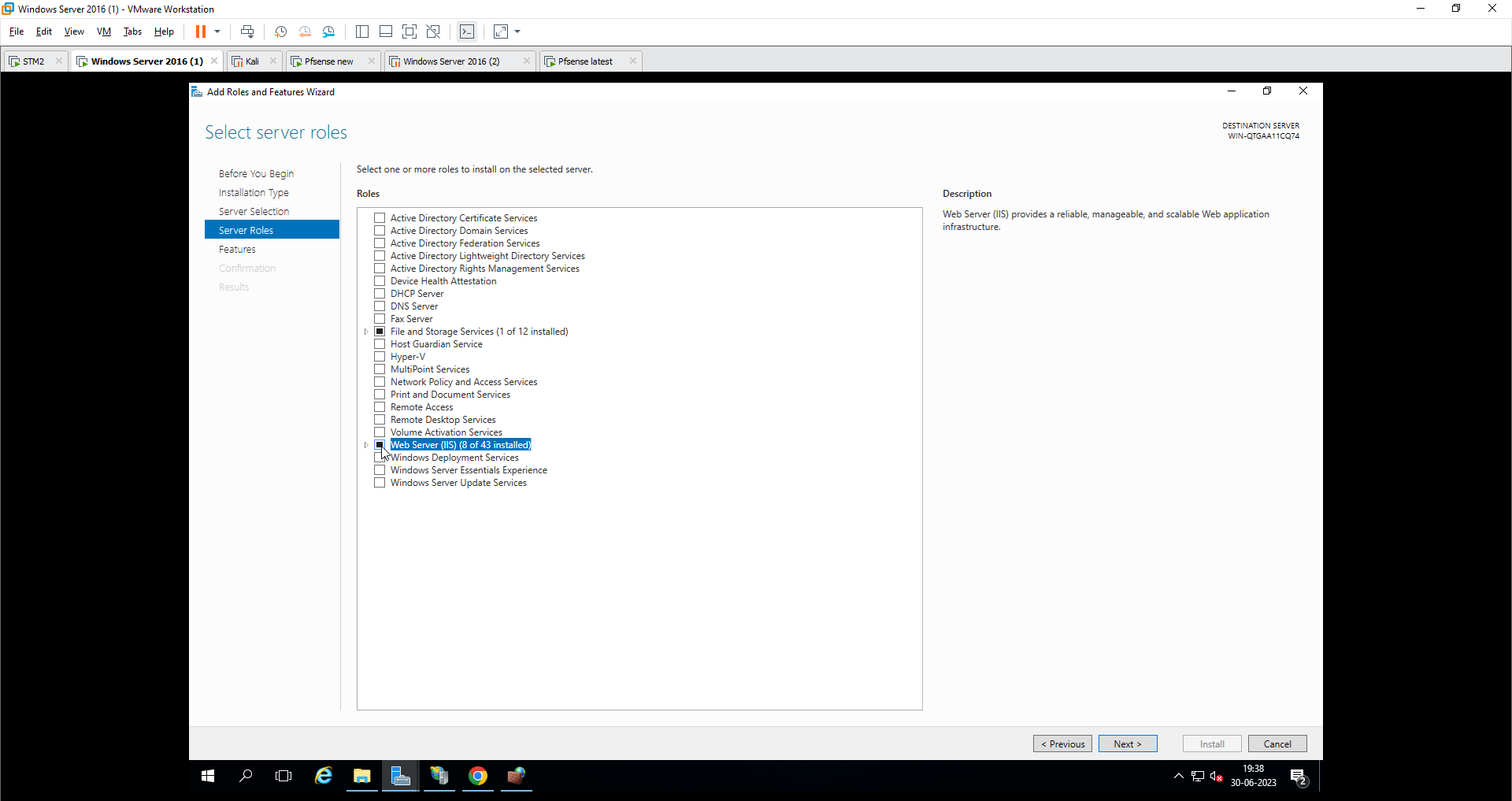
Step 6
- Next
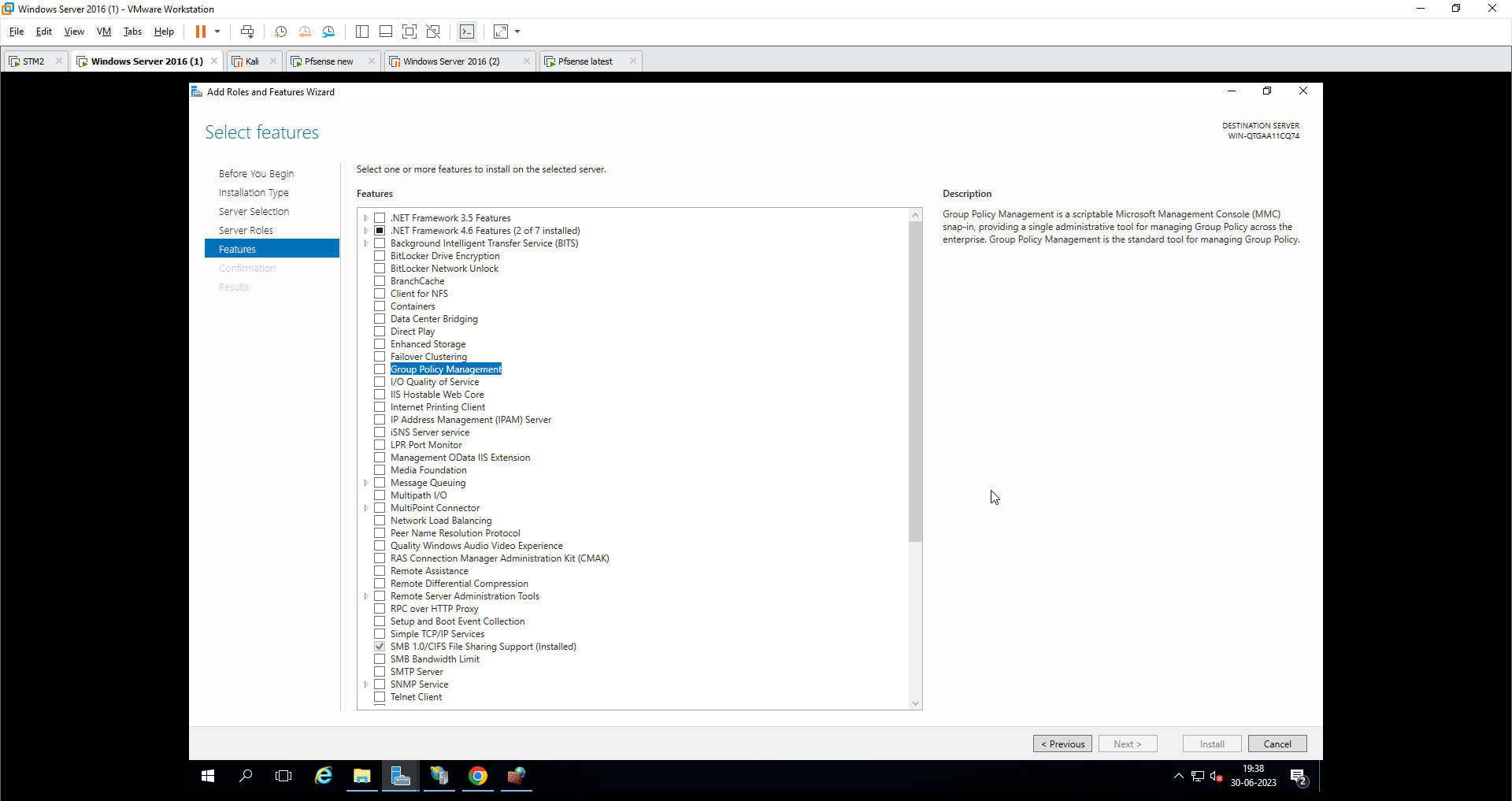
Step 7
- Install
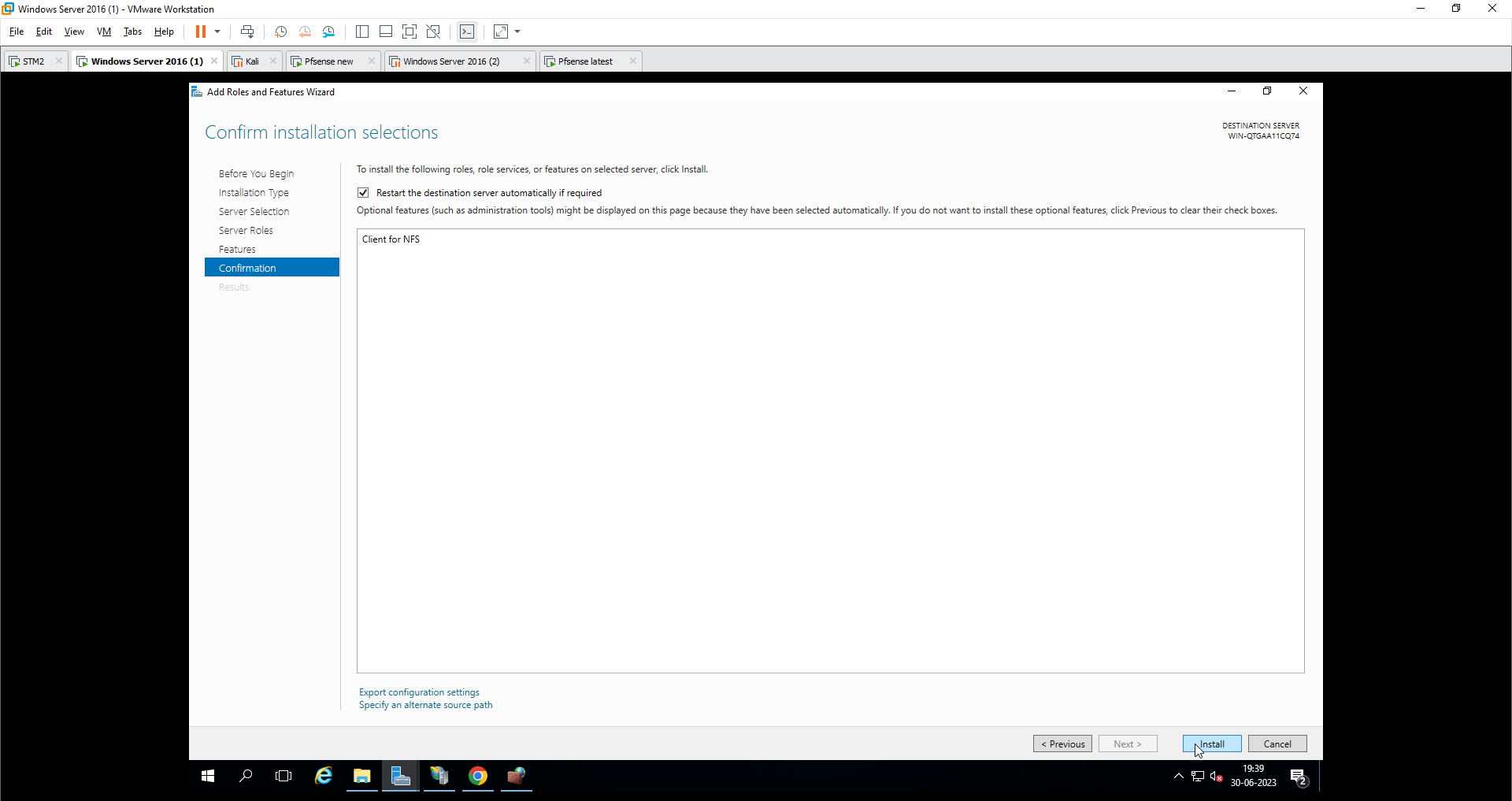
Finally on server manager you can see the created server
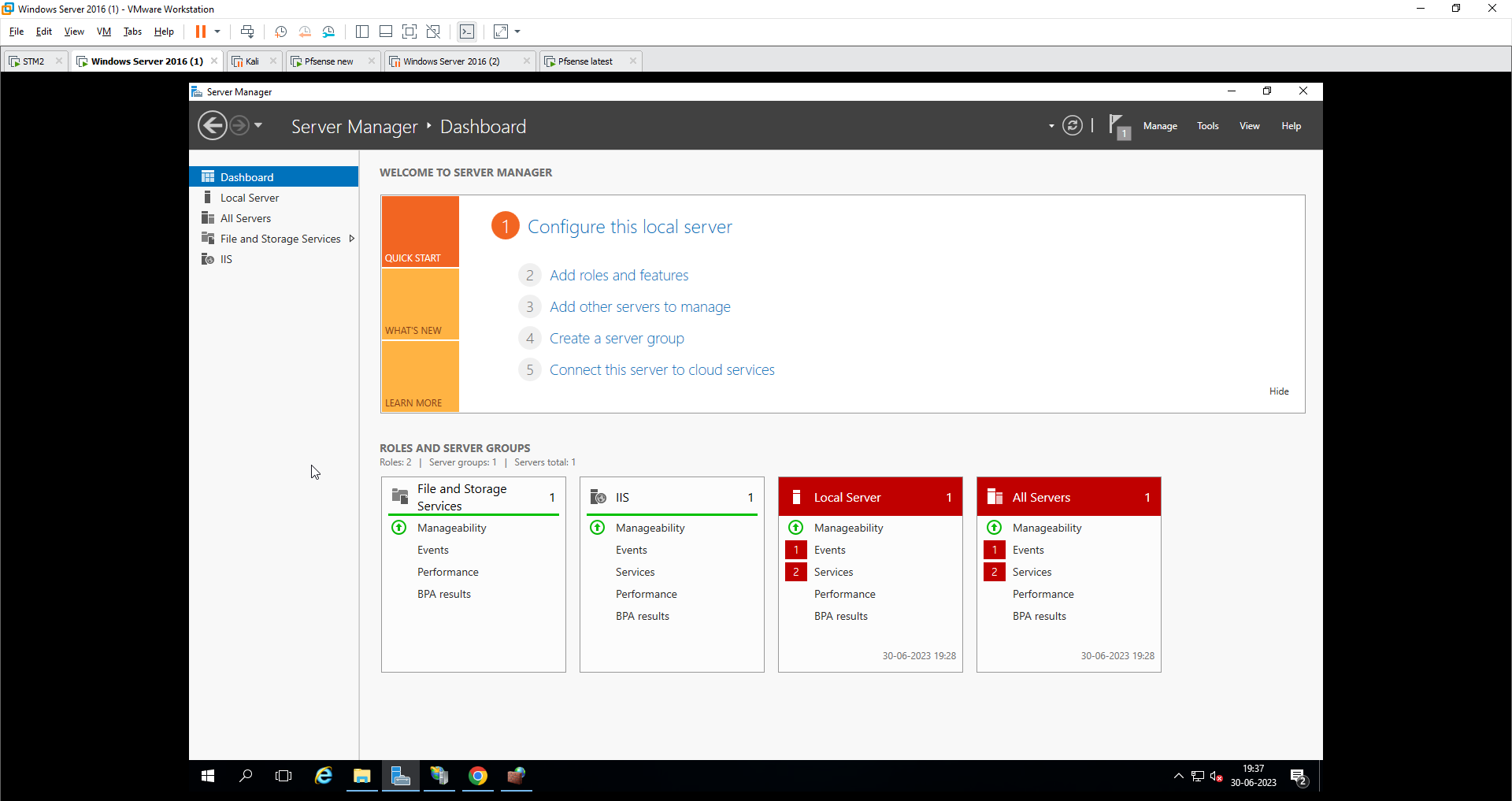
Now let's create a static web page to see if our web server is working or not
Step 1
Go to C-drive
Search for inetpub folder
Create folder for your website
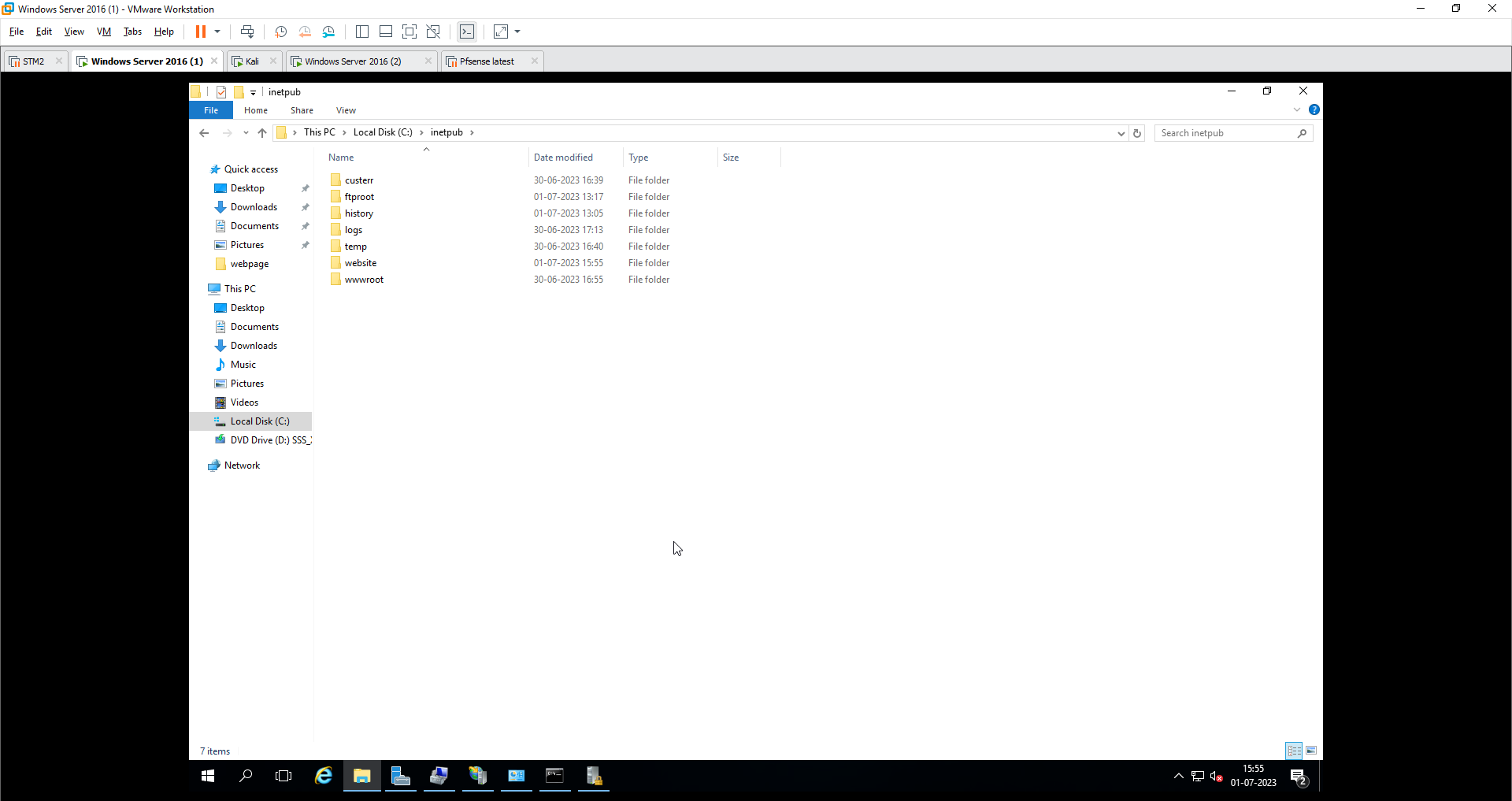
Step 2
- Create one html page inside the folder but be aware to name html file index.html only otherwise it will not bind to IP
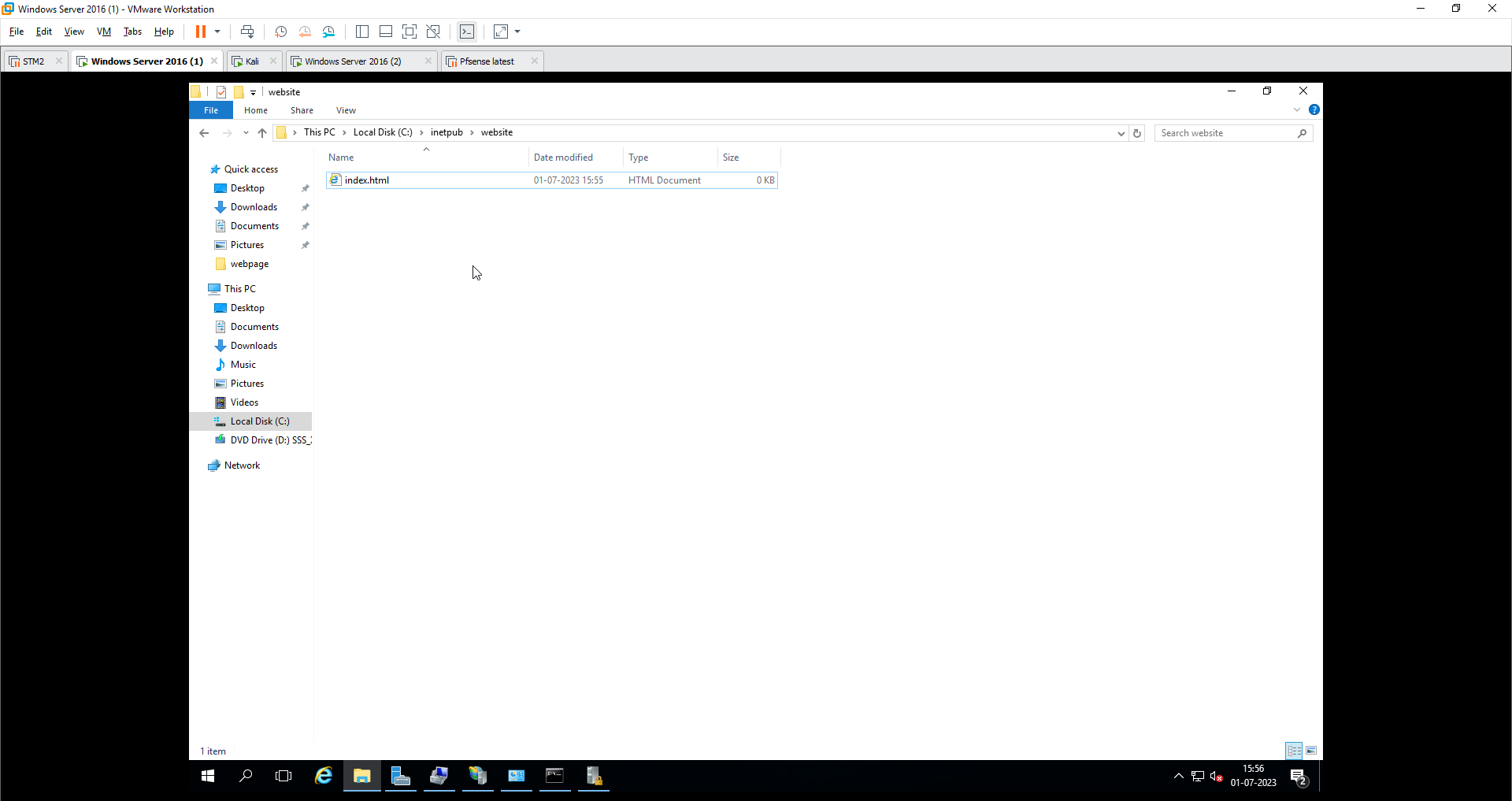
Step 3
Now go to IIS from your server manager > click on your local server > Manage > IIS
This page will open
Right click on sites and add website
Enter the site name as per your need
select the path for the page we created in our local machine
add IP or port, here I want to host it on port 7000
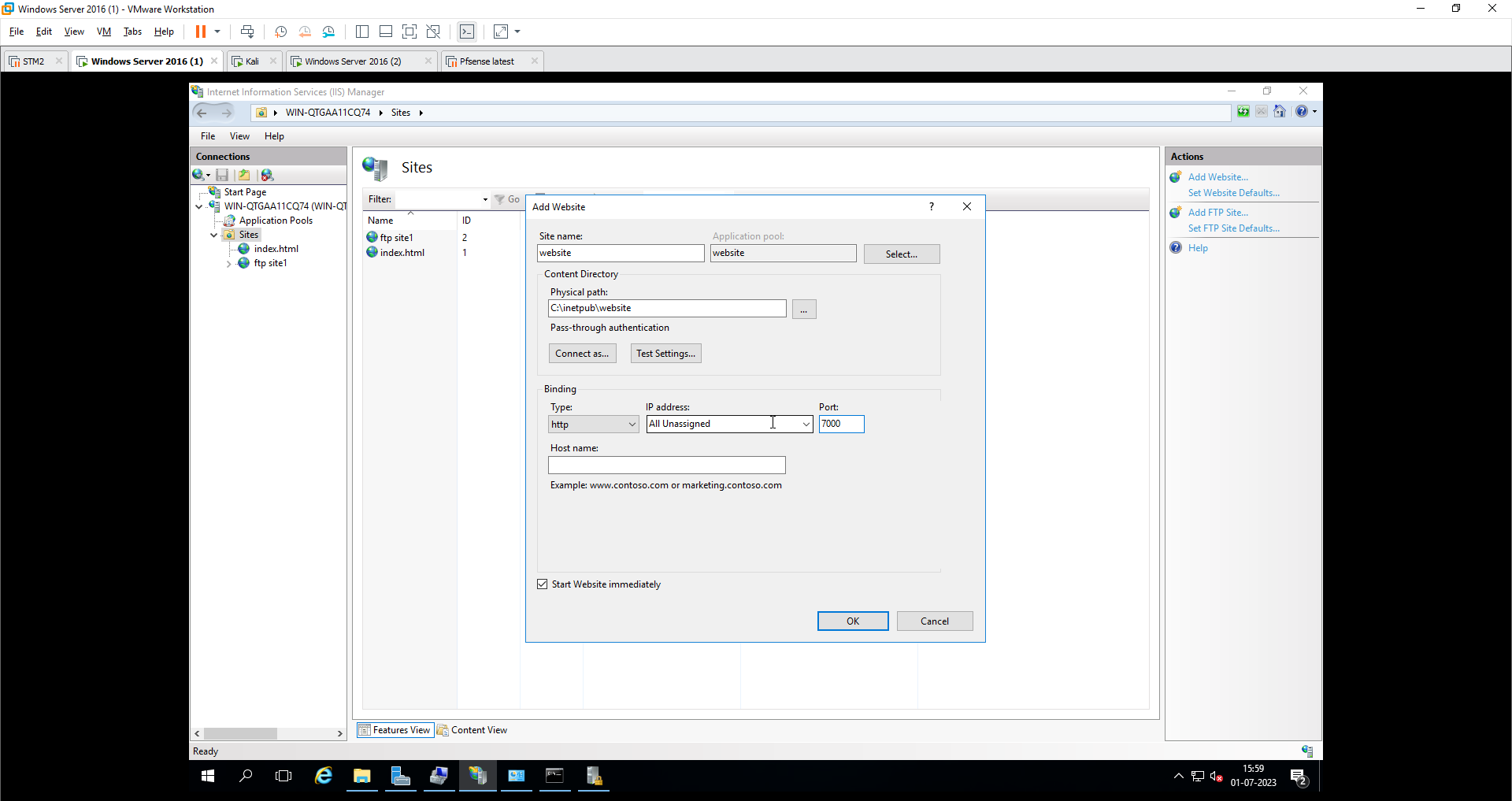
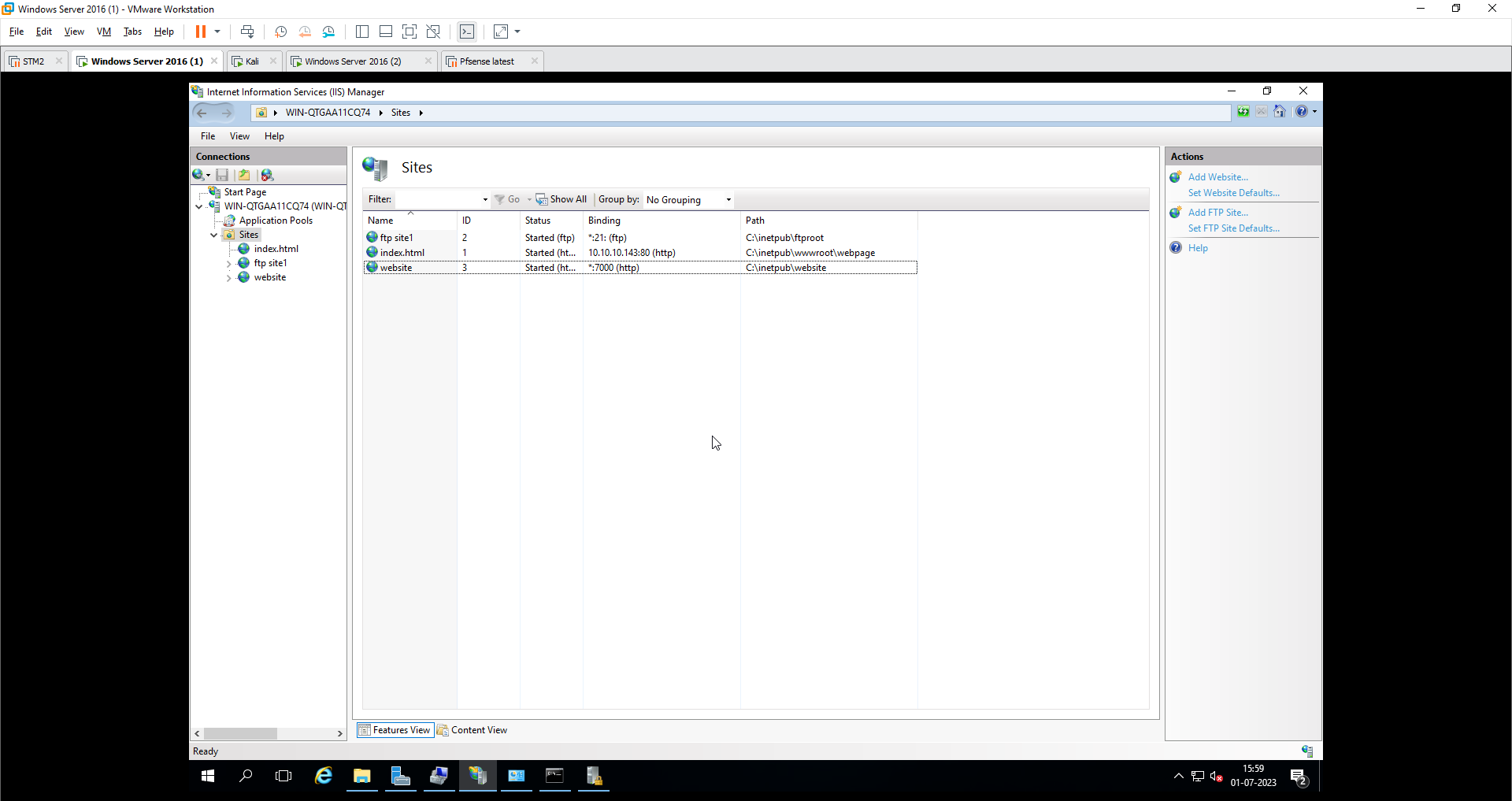
after adding the site it'll look something like this,
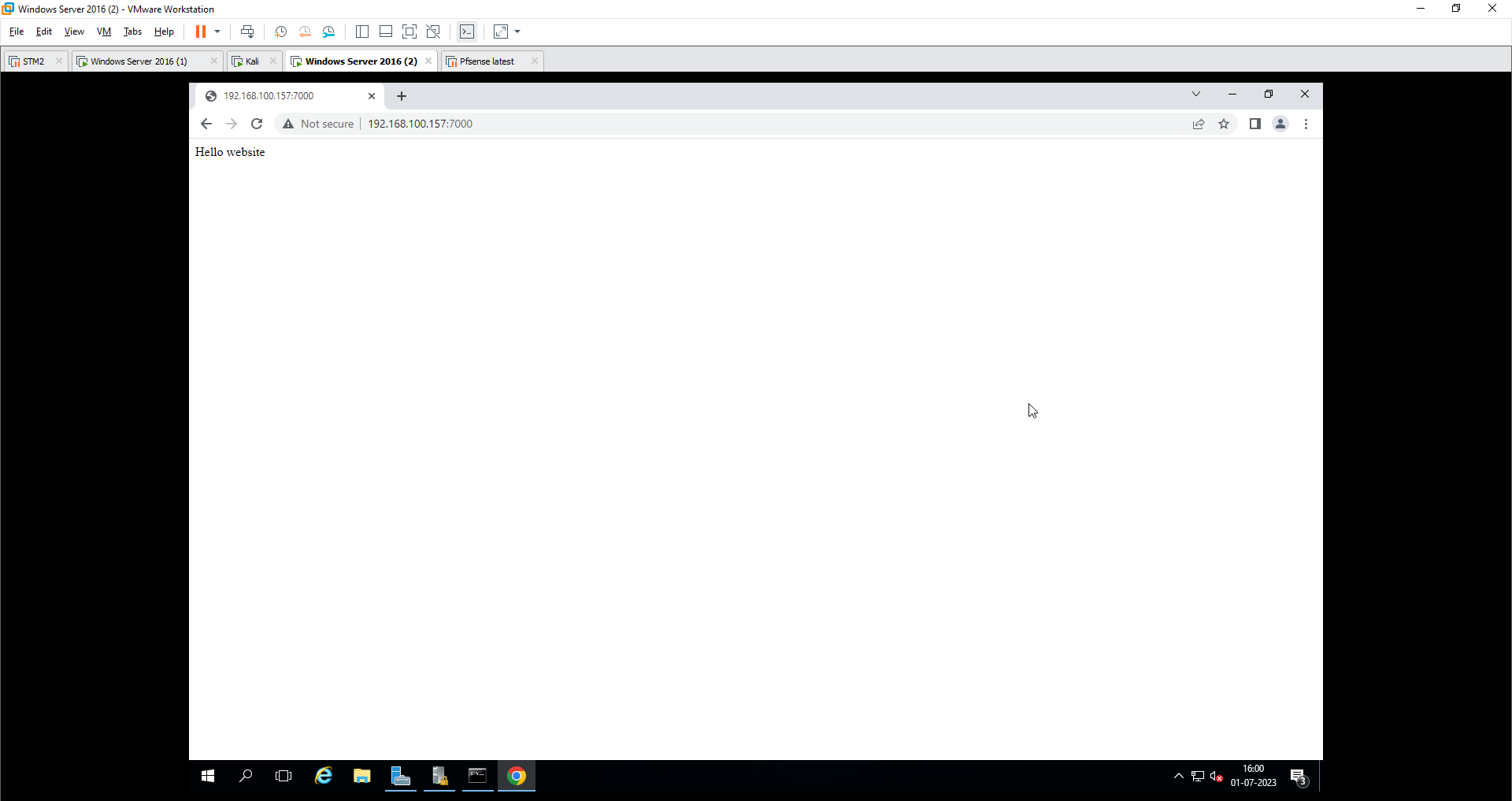
Now go to browser put your local IP of machine and port number and VOILA..!!